
PDF Scraping: How to Extract Data from PDFs
PDF scraping converts unstructured PDFs into structured JSON, CSV, or Excel using OCR, Python libraries, or AI. Learn which method fits your use case and how to automate it with FormX.

PDF scraping is the automated process of extracting unstructured data from PDF files and converting it into structured, machine-readable formats like JSON, CSV, or Excel. By eliminating manual data entry for documents like invoices, bank statements, and reports, it lets businesses process large volumes of information accurately and at scale.
PDFs were designed for visual consistency across devices, not for data portability. The information inside sits locked behind a rendering layer that standard database tools cannot read directly. Unlike a standard copy-and-paste, PDF scraping preserves the structural relationships between data points: vendor names, dates, line-item totals. It delivers them in a format that downstream systems can consume immediately.
How to Scrape Data from a PDF
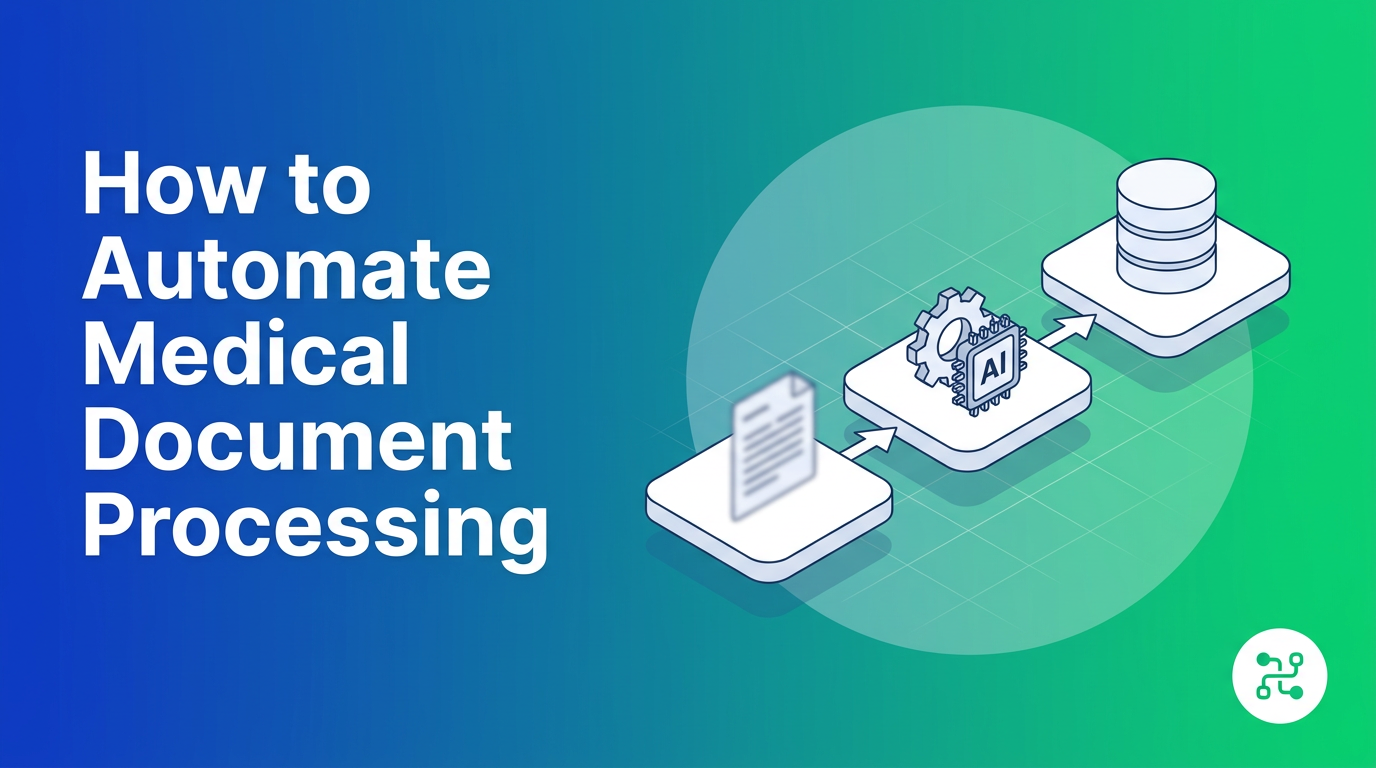
PDF scraping follows the same three-stage pipeline regardless of the tool: ingest the file, recognize the content, then parse and output the structured data. Where approaches diverge is in the recognition layer.
Native PDF extraction with Python libraries
Python-based tools like pdfminer.six, PyMuPDF, pdfplumber, and Camelot extract raw text from a PDF’s underlying structure. They work well for clean, digitally generated PDFs, run locally with no external API call, and give developers full programmatic control. A reasonable starting point for lightweight pipelines.
The limits appear quickly. Change the template, receive a scanned document, or get a file from a vendor who formats things differently, and extraction breaks. You end up writing more cleanup code than extraction code.
OCR for scanned PDFs
Scanned or image-based PDFs have no underlying text layer. OCR engines render each page, identify individual characters, and reconstruct the text. Modern OCR also captures spatial relationships, understanding that a number to the right of the word “Total” is likely a currency amount, which enables more context-aware extraction.
AI extraction and LLM-based parsing
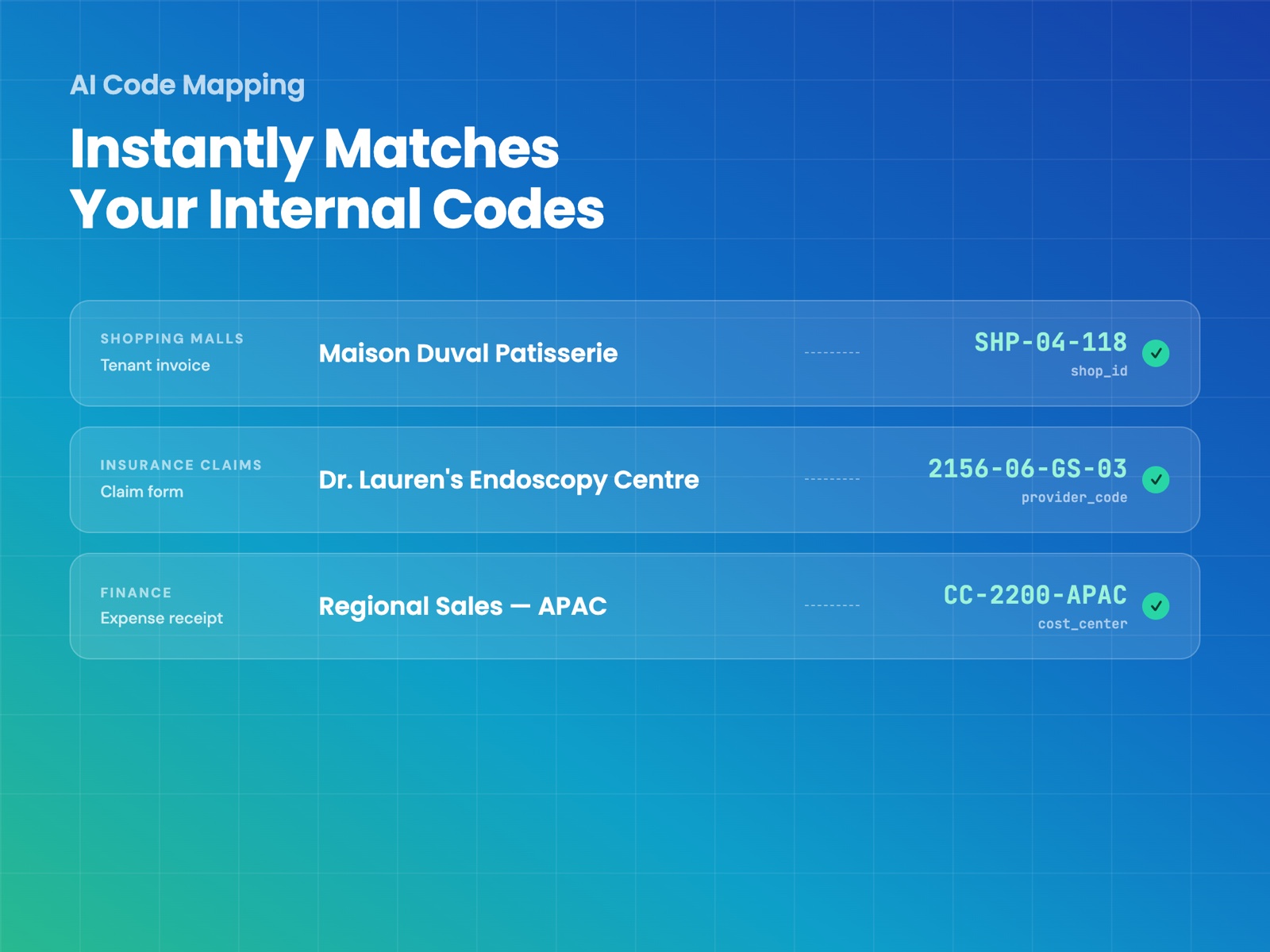
AI-powered Intelligent Document Processing (IDP) uses machine learning to understand document context, not just character shapes. Where OCR reads what’s on the page, IDP understands what it means. It can tell a vendor address from a delivery address, identify a line-item price from a subtotal, and handle layout variation across documents from different sources - without a custom template for each one. Modern platforms combine OCR with LLM-based parsing, identifying fields by meaning rather than position – so “Amount Due” and “Total Payable” map to the same structured data field regardless of layout.
For organizations processing high volumes of documents from varied suppliers, IDP is the only approach that does not require constant maintenance.
How to Extract Data from PDF Using Python
Libraries like pdfminer.six, PyMuPDF, pdfplumber, and Camelot are the natural starting point. They extract text directly from a document’s internal structure with minimal setup and full control over the logic. For batches containing multiple documents in a single file, a document splitting step is needed before field-level extraction can run.
Here’s the typical starting point with pdfplumber:
import pdfplumber

with pdfplumber.open("invoice.pdf") as pdf:
    page = pdf.pages[0]
    print(page.extract_text())
    table = page.extract_table()  # returns a list of rows
This works cleanly on a digital PDF.
The catch: they fail on the documents that actually show up in production. A scanned vendor invoice with a rotated page, a multi-column financial table, a PDF that was printed and re-scanned - standard libraries produce garbled output on all of these. Cleaning it takes more work than the extraction itself.
A PDF scraping API handles that complexity at the source. One call returns structured JSON regardless of document quality, layout, or orientation. For developers who want a working integration rather than a growing library of edge-case handling code, it is a straightforward trade.
From PDF to JSON
Most workflows want the extracted data as JSON. A PDF scraping API returns parsed fields — vendor, date, line items, totals — as a structured JSON object, ready to post straight into a database or accounting system with no intermediate spreadsheet step.
Template-based extraction vs AI extraction: which to use?
Manual data entry does not scale. A team handling a few dozen documents a day can manage; a team handling hundreds cannot. Hiring more people to type numbers into spreadsheets gets expensive fast.
AI extraction tools process documents in seconds rather than minutes, and their accuracy holds at volume. Human reviewers slow down and make more mistakes as the pile grows. An AI extraction tool processes document 5,000 the same way it processed document one.
The operational case is direct: less time on data entry means faster processing cycles, fewer downstream errors to correct, and staff focused on work that requires actual judgment.
Common uses for PDF data scraping
Invoice and receipt processing
Accounts payable teams at mid-to-large organizations process hundreds of vendor invoices each week. Every vendor sends a different format. AI-powered extraction handles that variety without a custom template per supplier, pulling vendor details, dates, and line-item totals and pushing them directly into accounting software.
Financial data table extraction
Annual reports, bank statements, and regulatory filings contain complex tables with merged cells, footnotes, and multi-level headers that copy-paste tools cannot reliably reproduce. PDF scraping preserves the structural relationships within those tables, delivering data accurate enough for direct use in financial models.
ID and passport data extraction
KYC and customer onboarding processes require reading identity documents quickly and accurately. AI extraction reads the Machine Readable Zone and data fields from passports and national IDs across international formats, feeding structured records directly into verification and CRM systems.
Resume and CV parsing
Recruitment teams receive hundreds of applications per open role, in every layout imaginable. PDF scraping normalizes them into consistent structured records, making automated screening possible and cutting the time from application to shortlist.
How to Extract Data from PDF with FormX.ai
FormX.ai extracts structured data from PDF files and document images using OCR, machine learning, and natural language processing, returning clean JSON without requiring template configuration for each document type. The platform offers pre-trained models for common document categories and a custom setup flow for unique or complex files.
Step 1: Sign in and select a template
Sign into the FormX portal and choose a pre-trained extractor for your document type. FormX has ready-made models for receipts, invoices, passports, IDs, and business registration documents. You can validate extraction accuracy before writing any integration code.
Step 2: Initialize custom setup
For documents that do not fit a standard template, click Add New Form and select the layout option for variable-format documents. This tells the AI to interpret the document contextually rather than positionally - the right choice when field positions vary between instances, like invoices from different vendors or contracts from different law firms.
Step 3: Define document and data types
Select your document category and specify which fields to extract. FormX lets you configure exactly what comes out - from standard fields like merchant name, date, and total to custom fields specific to your workflow - so the JSON output maps directly to your database schema without post-processing.
Step 4: Label a master image
Upload a master image to set anchor regions for orientation and define where target data appears on the page. Anchor regions give the AI a stable reference point, maintaining accuracy even when documents arrive at an angle, on different paper sizes, or at varying scan resolutions.
Step 5: Test and integrate
Upload a sample document, verify the JSON output against the source, then integrate the automated process into your existing systems via Zapier or the direct API. The FormX API accepts documents in real time and returns structured JSON, making it straightforward to embed extraction into any application - from a loyalty app processing customer receipts to an ERP system ingesting vendor invoices automatically.
If you’d like to see FormX in action, talk with us directly to see how we can make your workflow more efficient.
Frequently asked questions
What is the best PDF scraper?
The best PDF scraper depends on your documents. For clean, digitally generated PDFs with a fixed layout, Python libraries like pdfplumber are enough. For scanned files, varied vendor formats, or high volumes, an AI-powered extraction tool that handles layout variation without per-template setup — like FormX — is more reliable and needs far less maintenance.
How do I extract data from a PDF for free?
Open-source Python libraries (pdfminer.six, PyMuPDF, pdfplumber, Camelot) extract data from PDFs for free and work well on clean, digital files. They struggle with scanned documents, rotated pages, and tables that vary between vendors — the point at which a managed PDF scraping API becomes worth the cost.
Can ChatGPT pull data from a PDF?
ChatGPT can read a PDF and answer questions about it for one-off tasks, but it is not built for reliable structured extraction at volume: you cannot guarantee a consistent JSON schema, and it can hallucinate values. For production pipelines that feed a database, a purpose-built extraction tool returns the same fields every time.
Can Excel pull data from a PDF?
Excel’s Power Query can import tables from clean, well-structured PDFs. It breaks down on scanned documents and layouts that change between files. For converting a PDF to JSON or a reliable spreadsheet across varied documents, a dedicated PDF scraping tool is the more dependable route.
Latest articles